
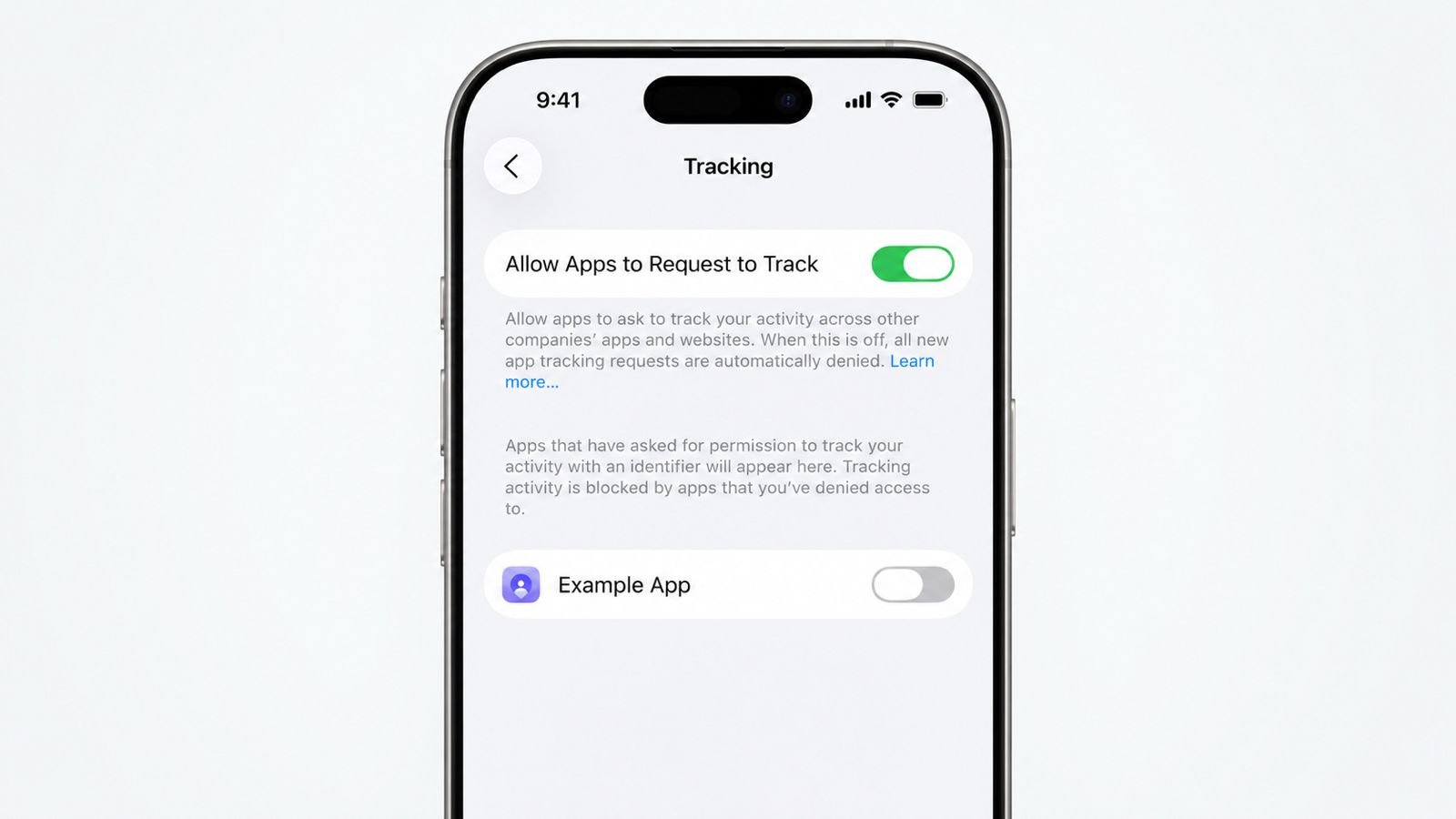

Switching Off App Tracking on iPhone helps protect privacy. Apps can track activity across websites and applications. However, Apple requires permission before tracking starts.
Users can reject tracking without losing app features. Apple also provides several additional privacy controls.
How App Tracking Works on Your iPhone
Modern apps can collect information about online activity. This information can include activity across different services. Apps may use this information for targeted advertising. Some companies may also share information externally. Data brokers can receive certain collected information.
Apple introduced App Tracking Transparency with iOS 14.5. This feature gives users more control over tracking. It requires apps to request permission before tracking. Tracking can happen across other apps and websites. Those services may belong to different companies.
When installing certain apps, tracking prompts appear. These prompts ask whether tracking should be allowed. You can reject tracking directly from that prompt. Choose the option that prevents app tracking. The app should continue working normally afterward.
Why Do Apps Want Tracking Permission?
Tracking can help companies deliver personalized advertisements. For example, browsing activity reveals personal interests. Apps can use those interests for targeted advertising. Searching products can influence advertisements shown later.
Some companies can also share information with brokers. Therefore, tracking permissions deserve careful attention from users. Apple gives users control before this tracking happens.
You can also investigate an app beforehand. Open its listing inside Apple’s App Store. Check available information about its data practices. This can help you make informed privacy decisions.
Does Turning Tracking Off Break Apps?
No, rejecting tracking normally does not break apps. You can continue using the app normally afterward. Most features should remain available without tracking permission. The biggest change involves advertising and information sharing.
You may notice less personalized advertising afterward. Advertisements might not match your interests anymore. However, stronger privacy becomes the main benefit.
Switch it Off Completely
Apple provides a setting for blocking tracking requests. This option prevents apps from asking for permission. You will no longer receive those tracking prompts. Tracking requests become disabled across supported applications.
Follow These Steps
- Open the Settings app on your iPhone.
- Tap Privacy & Security from the menu.
- Select Tracking to view tracking controls.
- Find Allow Apps to Request to Track.
- Turn the switch off to block requests.
Once disabled, apps cannot request tracking permission. This prevents future tracking permission pop-ups completely. You also avoid changing every application manually.
This setting works with iOS 14.5 and later. Supported Apple devices include this privacy feature. Older iOS versions may have different options. Updating your iPhone can provide newer controls.
Prefer Controlling Apps Individually?
You may not want to block every application. Apple also provides individual tracking permission controls. This option gives you more flexibility over tracking.
Go to Settings > Privacy & Security > Tracking. The page shows apps requesting tracking permission. Find the application you want to control. Then switch its tracking permission to off.
That specific application will lose tracking permission afterward. Other apps can keep their current permission settings. You can repeat these steps for multiple applications.
This approach works well for selective privacy control. Some users still prefer personalized advertisements from certain apps. Others may want tracking completely disabled everywhere.
You Can Change Your Decision Later
Your tracking decision does not have to remain permanent. Apple lets you change permissions whenever necessary. Simply return to the Tracking settings again.
You can then enable selected tracking permissions again. This does not require reinstalling your applications. Your privacy choices can change as your needs change.
Turn Off for Better Privacy
Turning off tracking provides stronger privacy protection. However, tracking is only one privacy concern. Your iPhone includes several other useful privacy controls.
Taking a few extra steps can help significantly. These settings control location, advertisements, and Wallet access.
1. Limit Location Access
Location information can reveal important personal details. Many apps request location access for useful features. However, not every application needs constant location access.
You can manage these permissions through Location Services. Find this option inside Privacy & Security. You can disable location access completely if needed.
You can also control individual applications separately. Some apps can access your location while being used. This provides a practical balance between privacy and functionality.
For example, navigation apps need location information. Weather apps may also require location access. Other applications might not need constant access. A smarter approach is reviewing each app. Ask whether that application truly needs location access.
2. Disable Personalized Apple Advertising
Apple also offers controls for personalized advertisements. These settings are separate from app tracking controls. You can find them inside Privacy & Security.
Go to Apple Advertising and find Personalized Ads. Turn the option off if desired. Apple will then stop personalizing advertisements through activity.
However, this does not remove advertisements completely. You will still see advertisements on your device. You will simply see more general advertisements instead.
This creates an important privacy tradeoff for users. Fewer personal signals mean less targeted advertising. Therefore, advertisements may feel less relevant afterward.
3. Check Wallet Privacy Settings
Your iPhone also provides Wallet privacy controls. These settings can help review financial access. Open Wallet under your privacy settings.
Check which applications currently have access there. Remove access from apps that no longer need it. This can reduce unnecessary financial information access.
Regular reviews can help catch forgotten permissions. An application may no longer need previous access. Removing unnecessary permissions strengthens your privacy approach.
What Happens After You Disable Tracking?
Turning off tracking changes how applications collect information. Apps have less information about your activity. This can affect the advertisements shown to you.
Your Advertisements May Become Less Relevant
Apps use tracking information for personalized advertisements. Without tracking, fewer personal signals become available. Therefore, advertisements may become more generic overall.
However, you should not expect fewer advertisements. Turning tracking off does not remove advertising. You may still see the same number of advertisements.
The main difference involves advertisement personalization. Ads may no longer closely match your interests.
Tracking Can Still Have Some Limitations
Turning off app tracking does not stop everything. Apple can still collect certain anonymous device information. Third-party apps can also collect anonymous information.
This information can help applications function properly. Anonymous information should not identify you personally. Therefore, tracking controls do not prevent every collection.
Understanding this limitation helps set realistic expectations. Your iPhone becomes more private through these controls. However, complete data collection prevention is impossible.
Review Your Privacy Settings Regularly
Privacy should not be treated as a one-time setup. Apps can change their data practices over time. New applications can also request additional permissions.
Spend some time reviewing your privacy settings periodically. Check tracking permissions for recently installed applications. Review location access for unnecessary permissions too.
You should also check Apple Advertising settings. Finally, review Wallet access for financial applications.
A regular privacy check takes only a few minutes. It can help prevent unwanted permissions from remaining active.
Quick Privacy Checklist
Use this checklist after changing tracking settings:
- Tracking: Disable unwanted app tracking permissions.
- Tracking Requests: Turn off future tracking requests.
- Location: Remove unnecessary location permissions.
- Apple Advertising: Disable personalized advertisements.
- Wallet: Review financial application access.
- App Store: Check app data information before installing.
- Privacy: Review permissions regularly for changes.
These small checks can make privacy easier. They also give you more control over information.
As We Conclude
Turn Off App Tracking on iPhone to keep personal privacy safe. Apple provides simple controls for managing tracking permissions.
You can block every request or choose individual apps. Other settings can limit location and advertising access. Regular privacy checks provide stronger protection over time.