
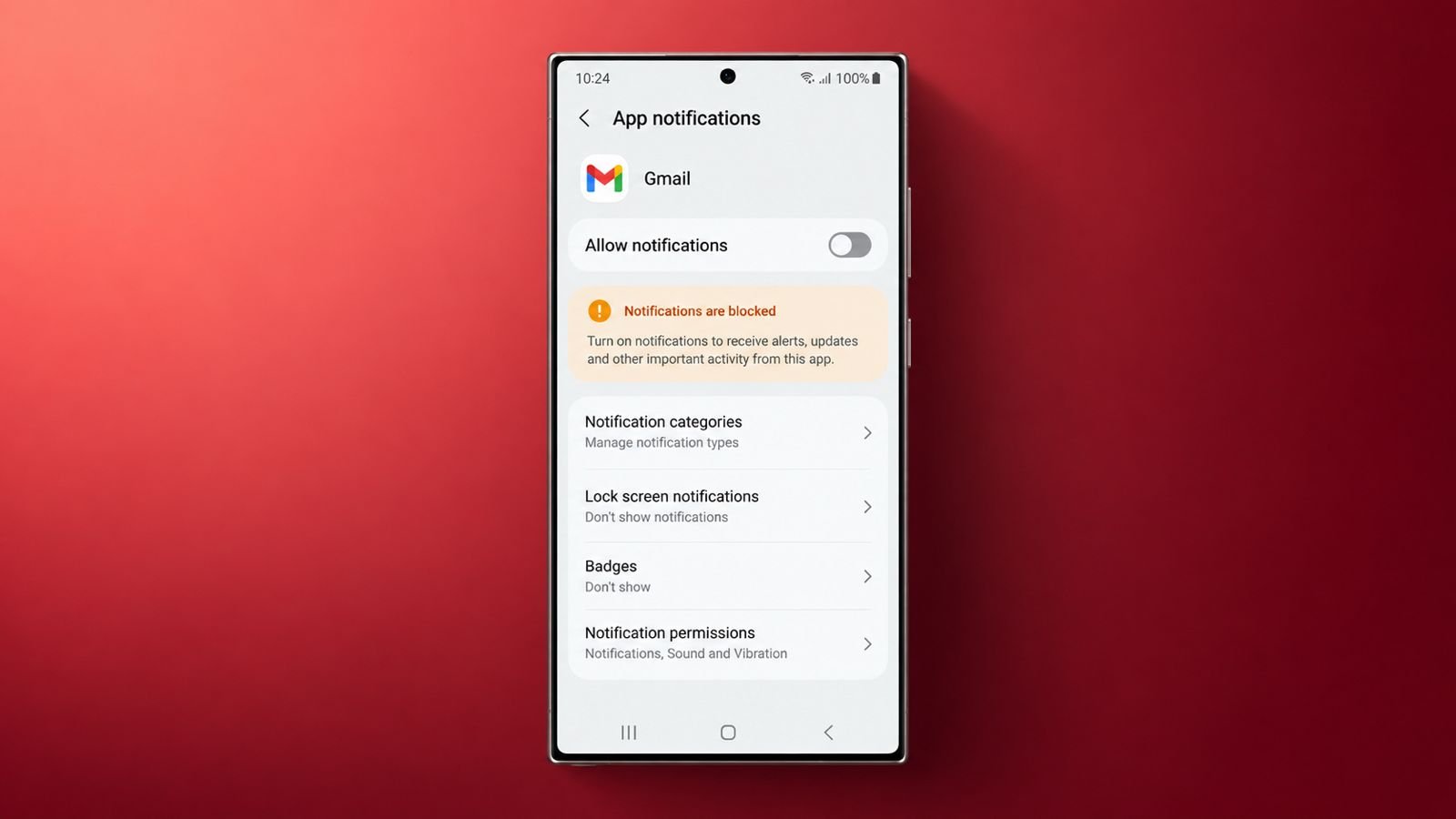

Gmail Notifications aren’t coming and it can become frustrating. New emails arrive, but your phone stays silent. Sometimes alerts appear after opening Gmail manually.
Usually, Gmail itself is working completely fine. A few Android settings often cause trouble instead.
Gmail Notifications Not Working? Start With Notification Settings
Before touching battery settings, check notifications first. This sounds obvious, but it matters greatly. Gmail uses more than one notification setting. Android controls alerts at the system level. Gmail also manages alerts for individual accounts.
One setting might work while another doesn’t. That makes finding the problem slightly confusing. Start inside Gmail, then check Android settings.
Check Notifications Inside Gmail
Open Gmail and tap the menu icon. Now open Settings from the available menu. Choose the account causing notification problems. Find Notifications inside that account’s settings.
Make sure all notifications are selected there. Choosing High Priority can exclude some messages. Selecting None will stop notifications completely.
Follow these steps for every affected account:
- Open Gmail and enter the Settings menu.
- Select your affected Gmail account there.
- Find Notifications under the account settings.
- Choose All for every incoming email.
- Repeat these steps for other accounts.
This account-level setting often gets overlooked completely. Gmail handles every logged-in account separately. One account may work perfectly normally. Another account might remain completely silent.
Check Android Notification Permissions
Your Gmail settings might already look correct. Android could still be blocking notifications completely. Open Settings and search for Notifications. Some phones call this Apps & Notifications. Others may show Notification Center instead.
Find Gmail and open its notification controls. Make sure Allow Notifications remains switched on. Review other Gmail notification categories there too.
Sometimes toggling notifications can also help. Disable the setting for several seconds. Then switch notifications back on again. This refresh can fix temporary notification glitches.
Don’t Forget Lock Screen Notifications
Emails may arrive without appearing onscreen properly. Your lock screen settings could cause this. Find Lock Screen inside notification settings.
Check these options carefully:
- Disable Hide Lock Screen Notifications if enabled.
- Choose Show Notifications when that option appears.
- Make sure Gmail alerts aren’t specifically hidden.
Android menu names vary across different manufacturers. Use Settings search when options look different.
Check Gmail Label Notifications Too
Here’s another setting people commonly miss completely. Gmail provides separate notifications for different labels. That means certain inbox sections might stay silent.
Open your affected account inside Gmail settings. Select Manage Labels from the available options. Check every inbox section you actually use. Make sure Label Notifications are enabled there.
This becomes important when notifications seem inconsistent. Some messages might alert you normally. Others may arrive without any notification.
Fix Gmail Sync Problems
Suppose every notification setting looks completely correct. Your next stop should be Gmail syncing. Gmail needs background synchronization for timely alerts.
A common clue appears after opening Gmail. Suddenly, several unread emails appear together instantly. This usually points toward background syncing problems.
Check Whether Gmail Sync Is Enabled
Open Gmail and enter Settings again. Select the email account causing trouble. Scroll down toward the Data Usage section. Find the Sync Gmail option there.
Make sure the setting remains switched on. However, don’t stop there if already enabled. Sometimes synchronization gets stuck without showing errors.
Try this quick refresh:
- Turn Sync Gmail completely off first.
- Wait several seconds before continuing further.
- Turn Sync Gmail back on again.
- Close Gmail from your recent applications.
- Reopen Gmail after waiting several seconds.
- Send yourself one email for testing.
Turning sync off-and-on sounds surprisingly basic. However, it can restart stuck background synchronization.
Notifications Missing After Changing Networks?
This problem has another interesting trigger sometimes. Gmail may stop syncing after network changes. It can happen when leaving your Wi-Fi. Switching toward mobile data can trigger delays.
Your internet might otherwise work completely normally. Websites load, messages send, and apps connect. However, Gmail synchronization can remain temporarily stuck.
Don’t immediately start changing every phone setting. Close Gmail completely from recent applications instead. Open Gmail again after your connection stabilizes. Wait around one minute before testing notifications.
That simple refresh may restart background synchronization. It becomes especially useful after changing networks.
Check Battery And DND Settings
Battery management creates many Android notification problems. Modern Android phones aggressively control background applications.
This helps your battery last much longer. Unfortunately, Gmail notifications can suffer from restrictions. Two features deserve special attention here. These are Power Saver and Battery Optimization.
Temporarily Disable Power Saver
Power Saver reduces unnecessary background application activity. Gmail needs background activity for instant notifications. Restricting that activity can delay new alerts.
Open Android Settings and find battery options. Search for Power Saver or Battery Saver. Turn the feature off temporarily for testing.
Then send yourself another test email. See whether its notification arrives without Gmail opening. If alerts return, you’ve found the cause.
Stop Android Optimizing Gmail’s Battery
Battery optimization can become even more aggressive. Android may limit Gmail’s background processes automatically. Emails still arrive inside your Gmail account. Their notifications simply appear late or disappear.
The exact menu differs between Android manufacturers. Search Settings using terms like these:
- Battery Optimization
- Battery Saver
- Power Saving
- Background Usage
- Power & Battery
Open the complete list of installed applications. Choose All Apps if required there. Find Gmail and open its battery settings.
Select Not Optimized or Don’t Optimize there. Some Android phones use different wording instead. The goal remains allowing unrestricted background activity.
Another route can sometimes be much easier. Long-press Gmail inside your application drawer. Tap App Info, then open Battery settings. Allow Gmail background battery usage without restrictions.
Restart your phone after making these changes. Then test notifications using another incoming email.
Check Do Not Disturb Before Panicking
Sometimes the explanation is incredibly simple. Do Not Disturb might still be active. Gmail keeps receiving emails perfectly normally. Android simply keeps those notifications completely silent.
Pull down your phone’s quick settings panel. Check whether Do Not Disturb appears enabled. You can also check Sound & Vibration settings.
Don’t want to disable Do Not Disturb? Android lets Gmail bypass this mode instead. Find the section controlling allowed interrupting applications.
Add Gmail to your allowed applications list. Then choose which alerts can interrupt DND. You can also allow every Gmail notification.
Still Getting No Gmail Notifications?
At this stage, try basic software troubleshooting. Restarting Android can clear temporary background problems. It also refreshes network and notification services.
You should also check available updates carefully. Update Gmail through the Google Play Store. Check Android’s system update section too. Software bugs can sometimes affect notification delivery.
A useful troubleshooting order looks like this:
- Restart your Android phone once completely.
- Install available Gmail application updates.
- Check for available Android system updates.
- Send yourself another email for testing.
- Wait briefly without opening Gmail manually.
If notifications still refuse to appear afterward, the issue could involve deeper synchronization problems. A software bug may also be responsible. Further device-specific troubleshooting might then be necessary.
As We Conclude
Gmail Notifications Not Working doesn’t mean Gmail failed. Usually, one hidden setting causes the problem. Check notifications, syncing, battery restrictions, and DND carefully.
Refresh Gmail after changing internet networks too. These simple checks usually bring notifications back.