
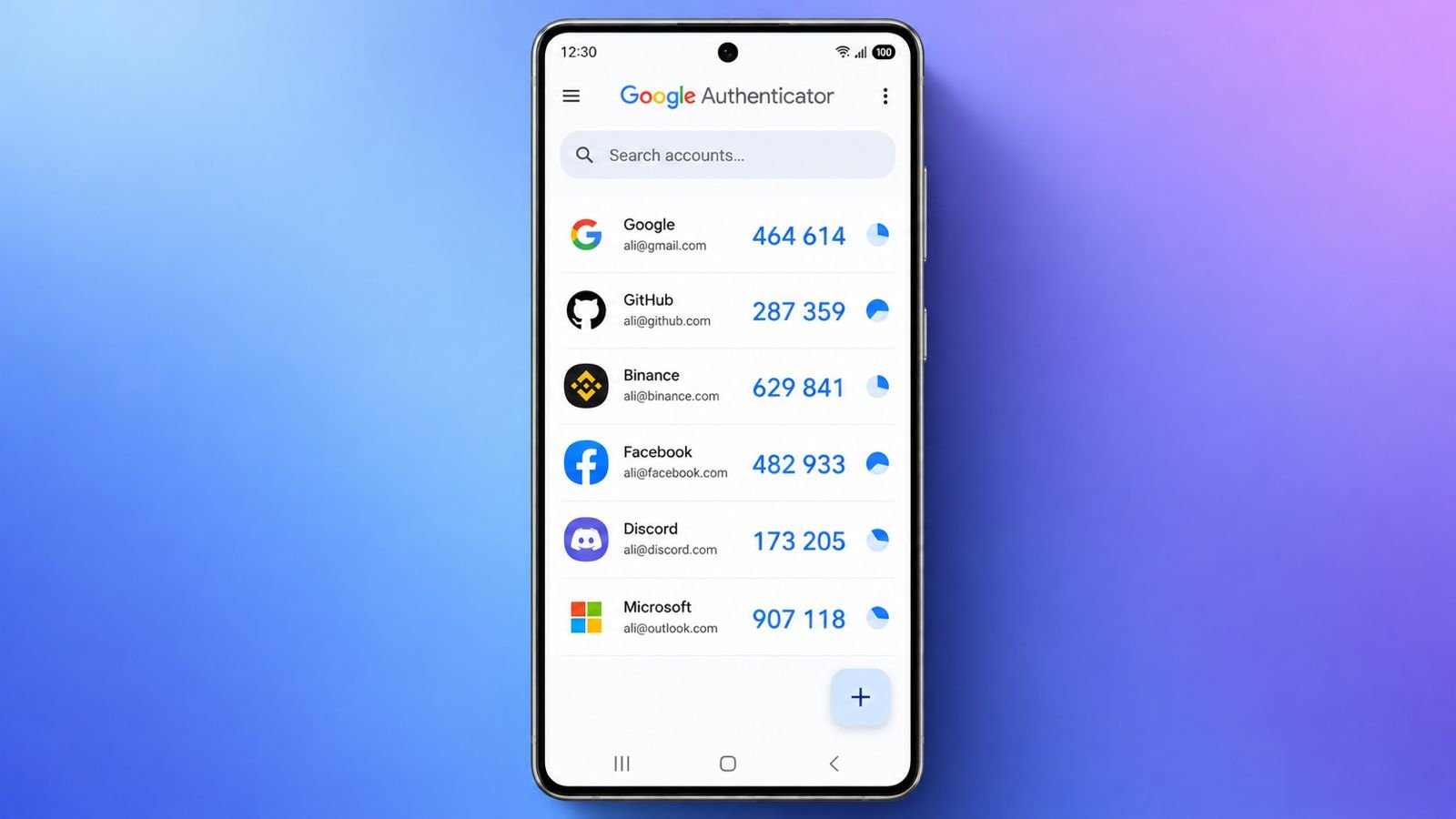

Back Up Google Authenticator before changing your phone. Losing these codes can lock important accounts. Google now supports cloud syncing for easier recovery.
Manual transfers also provide another safe option. Preparing first can prevent stressful account recovery.
Back Up Google Authenticator Before Changing Phones
Changing phones usually feels exciting and simple. You transfer photos, contacts, apps, and messages. However, authentication codes need special attention too.
Google Authenticator protects accounts through two-factor authentication. It generates temporary codes for account verification. These codes provide an additional security layer. Without them, some accounts become difficult to access.
Fortunately, Google offers two useful backup methods. The first method uses Google Account cloud syncing. The second method uses manual account transfers.
Both methods can protect your authentication accounts. However, preparation should happen before switching phones.
Why Your Authenticator Codes Need Protection
Authenticator accounts were previously stored locally only. Their secret keys remained inside your device. Removing app data could erase those keys. Reinstalling Authenticator could then remove your accounts.
That older system created major recovery problems. Users needed original setup information afterward. They might need QR codes or setup keys. Recovery codes could also become extremely important.
Google now provides cloud synchronization for Authenticator accounts. This makes account restoration much more convenient.
Still, you should never assume automatic protection. First, check whether cloud syncing actually works.
Check Your Google Authenticator Cloud Backup
Open Google Authenticator on your current phone. Look near your profile icon at the top. You should find a cloud-shaped status indicator.
A green cloud with a checkmark means syncing works. Your accounts should then connect with Google Account. This provides a convenient cloud-based backup.
If the green cloud isn’t showing, continue carefully.
- Open Google Authenticator on your phone.
- Tap your profile icon near the top.
- Sign into your Google Account there.
- Return to the Authenticator main screen.
- Check for the green cloud indicator.
Once visible, your accounts should synchronize properly.
Important: Use the correct Google Account always. A different account can make codes disappear.
Cloud Sync Makes Multiple Devices Possible
Cloud synchronization offers another useful advantage today. Your Authenticator accounts can work across devices.
This can include another phone or tablet. That means your accounts aren’t tied completely. They remain connected through your Google Account.
However, this does not remove every risk. You should still maintain recovery options separately. Keep your backup codes somewhere secure and private. Never share those codes with other people.
Verify Your Accounts Before Switching Phones
This step is easy to overlook during switching. Don’t immediately erase your old phone. Instead, open your Authenticator account list first. Check every important account shown there. Make sure your expected accounts appear correctly.
You should also test some authentication codes. Sign into important accounts using those codes. Confirm the codes successfully complete verification.
Pay special attention to critical accounts, including:
- Your primary email account
- Social media accounts
- Shopping accounts
- Financial services
- Work-related accounts
- Cloud storage accounts
Once these checks pass, continue with your phone switch.
Back Up Using Manual Transfer
Cloud syncing isn’t your only available solution. Google Authenticator also supports manual account transfers.
This method uses QR codes between two devices. Your old phone generates the transfer information. Your new phone scans that information afterward.
This method works especially well during phone upgrades. However, both devices should remain available.
Never reset your old phone beforehand.
Start By Preparing Your New Phone
Install Google Authenticator on your new device. Open the app after installation finishes completely. Choose Get started from the opening screen. Sign into your Google Account when requested.
Keep your old phone close during setup. You’ll need it for exporting accounts later. Also update Authenticator on both phones beforehand. Updated applications can reduce transfer-related problems.
Export Accounts From Your Old Phone
Now open the Authenticator on your old phone. Find the menu inside the application. Choose Transfer accounts from available options. Then select Export accounts to continue.
You’ll need to select your accounts afterward. Select the accounts you want moving across. Then choose Next after making your selection.
Your old phone will display a QR code. This QR code contains your authentication account information. Some users may see multiple QR codes. Follow each displayed QR code carefully.
Keep Your QR Codes Secure
Your transfer QR codes contain sensitive information. Anyone accessing them could potentially obtain account secrets. Therefore, don’t share QR codes publicly. Avoid sending them through messaging platforms unnecessarily.
You can save the QR code temporarily. Some users capture it using another device. Others choose to print the QR code securely. If you save one, protect it carefully. Delete unnecessary copies after successful transfer.
Import Accounts Onto Your New Phone
Now move back to your new phone. Open Google Authenticator there. Choose Scan QR code from transfer options. Point your camera toward the displayed QR code.
Wait until the Authenticator recognizes the transfer information. Your accounts should appear after successful scanning. If several QR codes appear, scan each one.
Check your account list after completing everything. Don’t close the transfer process prematurely. Keep both phones available until everything finishes.
Test Your Transferred Authentication Codes
This is perhaps the most important step. Don’t assume successful transfer means everything works. Return to Authenticator’s main account screen. Review every account transferred from your old phone. Then test important accounts individually.
Try signing into one important account first. Enter the current Authenticator code when requested. Confirm that verification completes successfully. Repeat this test for other important accounts. Testing prevents unpleasant surprises after resetting your phone.
Back Up Before Resetting Your Old Phone
An authenticator isn’t the only thing needing protection. Your old phone contains plenty of important information.
Photos, contacts, videos, and app data matter too. Therefore, complete your regular phone backup first.
Complete This Pre-Reset Checklist
Before resetting your old phone, check everything.
- Back up photos and videos to cloud storage.
- Confirm your contacts are properly backed up.
- Verify every important Authenticator account transferred.
- Test authentication codes on your new phone.
- Check important application data before resetting.
- Sign out from accounts on your old phone.
- Disable security locks before trading your phone.
- Remove your physical SIM card when applicable.
- Keep recovery codes stored somewhere secure.
- Keep your old phone until verification finishes.
This checklist can prevent many unnecessary problems.
Keep Backup Codes Ready For Emergencies
Authenticator codes aren’t your only recovery option. Many services provide one-time backup codes. These codes usually appear during 2FA setup. They can help when Authenticator becomes unavailable.
Google provides backup codes for account recovery. Other services offer similar recovery options too.
For example, these may include:
- Amazon
- Other two-factor authentication services
Store these codes somewhere safe and private. Don’t keep them only on your current phone. Losing the phone could mean losing those codes. A secure offline location provides additional protection.
What If Google Authenticator Won’t Sync?
Sometimes cloud syncing may not work correctly. Manual transfers can also experience occasional problems.
Try these troubleshooting steps before resetting anything:
- Update Authenticator on both devices.
- Check internet connections on both phones.
- Confirm the green cloud indicator appears.
- Verify the correct Google Account is active.
- Make sure both phones are properly configured.
- Retry the transfer before resetting anything.
Wrong Google Accounts can cause missing codes. Always check the signed-in account carefully.
If syncing still doesn’t work, use manual transfer. Keep your old phone available during troubleshooting.
What If You Have No Backup?
Losing Authenticator without backup can become difficult. Recovery depends on the individual account service. Some services provide backup codes for emergencies. Others offer additional verification methods for recovery.
You may need your original setup information. Original QR codes can sometimes restore your accounts. Saved setup keys may also help.
First, check whether cloud synchronization was enabled. Install Authenticator on another compatible device. Sign into your previous Google Account afterward. Your accounts may appear automatically after synchronization.
If they don’t appear, contact each affected service. Follow its official account recovery process carefully. Recovery isn’t always guaranteed without proper backups. That’s why preparation matters before switching phones.
Final Checks Before Trading Your Old Phone
Don’t hand over your old phone immediately. First, make sure everything works independently. Test your important email and social accounts. Check financial and work-related accounts too.
Confirm authentication works without your old device. Then sign out from accounts on it. Remove your physical SIM card when applicable.
Disable security locks before completing your trade-in. Finally, perform a factory reset on your phone. Only reset after verifying your important accounts.
As We Conclude
Back Up Google Authenticator before changing devices. Cloud syncing offers convenient account restoration across devices.
Manual transfer provides another practical backup method. Always test codes before resetting your phone. Keep recovery codes safely stored separately.