
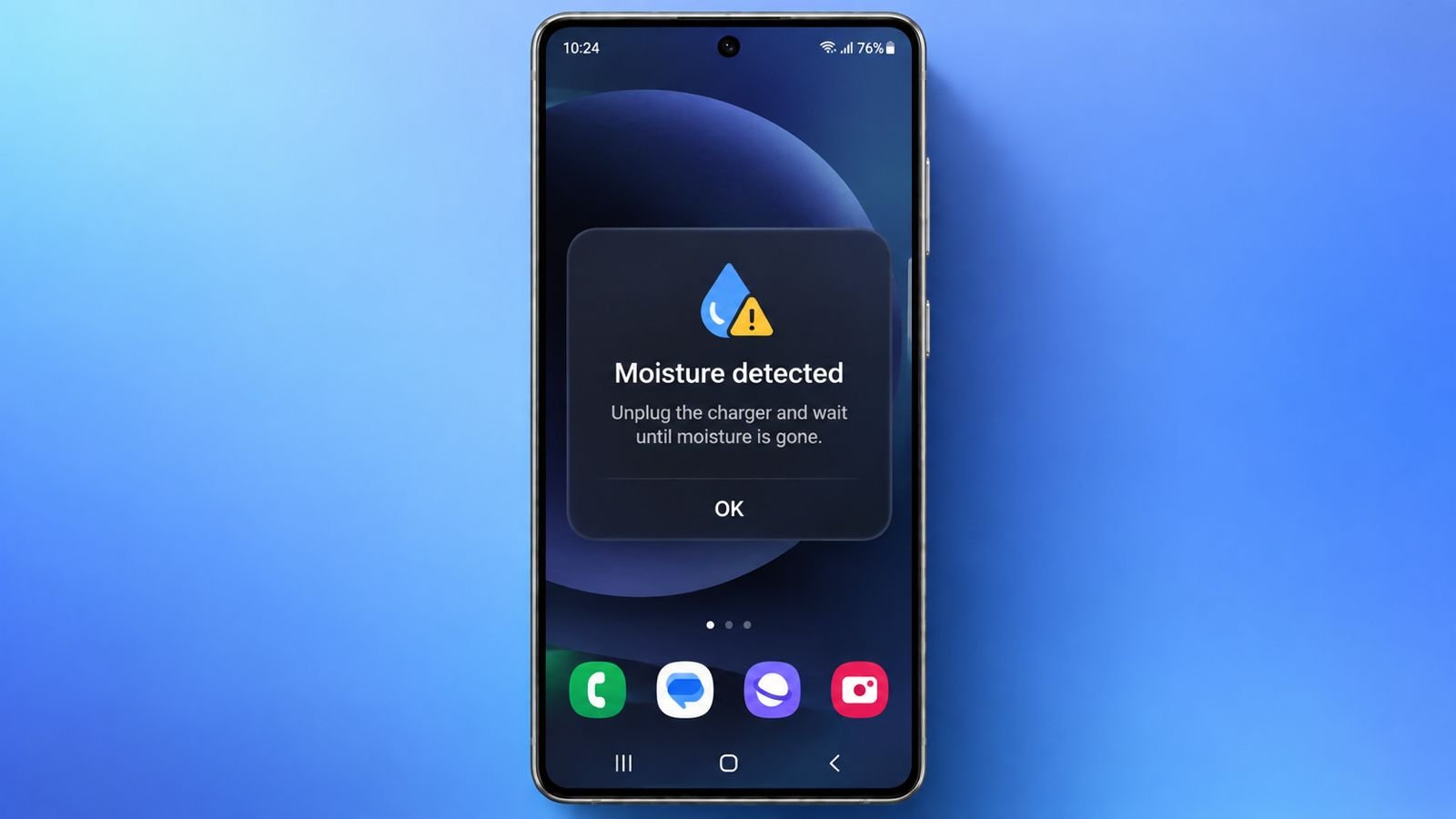

If your Samsung moisture detected warning will not go away, unplug the cable first. Power off a wet device and let it dry completely. Only move to software troubleshooting once the phone and connector are dry; do not try to bypass the charging protection.
However, dust, cables, and software can interfere. These practical fixes can help identify the problem.
Samsung Galaxy Moisture Warning: Understand The Alert First
The moisture warning exists for an important reason. Samsung Galaxy phones monitor their USB-C charging ports. A moisture sensor checks for possible liquid presence. The system also detects foreign material inside.
When something triggers detection, charging gets temporarily blocked. This prevents electricity flowing through potentially wet contacts. It also helps prevent short circuits and corrosion. That protection can save your charging port.
The warning message can appear unexpectedly sometimes. You might see it after using your phone. It can appear around water or humid conditions. Dust and debris can trigger similar warnings too.
What Usually Triggers The Moisture Warning?
There are several possible causes behind warnings.
- Water or liquid entered your charging port.
- High humidity affected the moisture detection system.
- Dust accumulated inside your USB-C charging port.
- Lint became trapped around charging contacts.
- Moisture remained inside your charging cable connector.
- A damaged cable created charging problems.
- Corroded charging pins triggered false detection.
- A temporary software glitch confused detection.
This explains why warnings sometimes seem completely wrong. Your port might look perfectly dry outside. Hidden moisture could still remain deeper inside.
Therefore, treat every warning seriously at first. Disconnect your charger before attempting any troubleshooting. Never immediately force wired charging through warnings.
Fix By Drying Everything
The safest first step involves natural drying. You should never rush this particular process. Even tiny moisture droplets can cause problems.
Step One: Disconnect The Charging Cable
Immediately remove your charging cable from your phone. Do not reconnect it while moisture remains. Also inspect the cable connector for visible droplets.
Wipe the cable using a completely dry cloth. Set the cable aside while your phone dries.
Step Two: Gently Shake Your Phone
Hold your Galaxy with the port downward. Gently shake your phone around five times. You can repeat this several more times.
Avoid aggressive shaking because internal components remain delicate. This movement can help release trapped moisture droplets. It can also loosen small particles inside.
Step Three: Let The Port Air Dry
Place your phone somewhere dry and ventilated. Keep the charging port facing downward whenever possible. Leave the device untouched for several hours.
Some phones may dry within thirty minutes. Others can require several hours for complete drying. The required time depends upon moisture levels.
A table fan can improve airflow around phones. Use cool airflow rather than heated air. Never use a hair dryer for drying. External heat can overheat your phone unnecessarily. It can also push moisture deeper inside.
You can also use silica gel packets. These packets can absorb surrounding moisture effectively. Keep your phone inside a dry environment.
Fix By Cleaning Carefully
Moisture isn’t always the real problem. Sometimes, ordinary dust creates the same warning. Lint can become surprisingly difficult to notice.
Inspect The USB-C Port Closely
Use bright lighting while checking your charging port. A flashlight can reveal hidden dust more easily. Look around the port’s internal edges carefully.
Check for these common contaminants:
- Lint from pockets or clothing.
- Dust accumulated around charging contacts.
- Small dirt particles inside the port.
- Visible corrosion around charging pins.
- Foreign material blocking cable connections.
Never insert metal objects inside your charging port. Metal can damage delicate charging contacts easily. It can also create unwanted electrical connections.
Do not probe the port with a toothpick, brush or metal tool. If you see packed debris, damaged contacts or corrosion, stop and arrange professional inspection.
If debris remains firmly stuck inside, stop cleaning. Professional cleaning becomes safer in that situation.
Don’t Forget Your Charging Cable
The cable deserves inspection during troubleshooting too. Its connector can collect dust and moisture. That contamination can trigger charging warnings unexpectedly.
Clean the connector carefully using a dry cloth. Never pour liquid onto the charging connector. Also avoid using damaged cables during testing.
Try another compatible cable if available nearby. Then test another compatible charging adapter afterward. This helps identify accessory-related charging problems quickly.
Fix Through Software Fixes
What if your port stays completely dry? That’s when software troubleshooting becomes more useful. Several software issues can create false moisture warnings.
Clear The USB Settings Cache
The USB system app controls charging-related functions. Its temporary data can sometimes become corrupted. Clearing that cache can reset temporary USB information.
Follow these steps carefully:
- Open Settings on your Samsung Galaxy.
- Tap Apps from the available options.
- Tap the filter icon near the top.
- Enable Show system apps from options.
- Find USBSettings in the application list.
- Tap Storage inside the USBSettings page.
- Select Clear cache to remove temporary files.
Restart your phone after clearing the cache. Then test charging using another compatible cable.
Restart Your Samsung Galaxy
A simple restart can clear temporary software glitches. Make sure your charging port remains completely dry. Press Side + Volume Down buttons together. Hold them until the power menu appears.
Tap Restart and wait for complete rebooting. If normal restarting doesn’t solve the problem, continue. You can try performing a forced restart afterward.
Press Power + Volume Down buttons together. Keep holding until the Samsung logo appears. Release both buttons after seeing that logo.
Fix With Final Options
Most users should solve problems earlier successfully. However, stubborn warnings sometimes need stronger solutions.
Update Your Samsung Galaxy Software
Software updates can fix known system-related problems. They can also improve USB charging system stability. Open Settings and check software updates available.
Download any available update before testing again. Keep your battery sufficiently charged before updating.
Use Wireless Charging Instead
Wireless charging provides another useful temporary solution. This works only with compatible Galaxy models. Wireless charging completely avoids the USB-C port. Use it only when the phone exterior and charging pad are dry, the device is undamaged and your model supports wireless charging.
This option can keep your phone powered. It also gives the charging port more drying. However, wireless charging doesn’t repair damaged hardware. It should therefore remain a temporary workaround.
When Does Your Charging Port Need Repair?
Sometimes, troubleshooting simply cannot solve hardware damage. Certain physical signs clearly deserve professional inspection.
Watch for these charging port warning signs:
- The charging cable feels unusually loose.
- The cable becomes hot during charging.
- Rust remains visible inside your charging port.
- Debris remains stuck despite careful cleaning.
- USB-C pins appear bent or physically damaged.
These signs can indicate charging port damage. Professional technicians can inspect the port safely.
Do not repeatedly force cables into damaged ports. Avoid using questionable charging accessories during testing.
Can You Permanently Disable Moisture Detection?
There isn’t a safe permanent disabling method. The warning exists as an important safety feature. It protects your phone’s internal charging components.
Trying to bypass this protection creates unnecessary risks. Charging while moisture remains can cause corrosion. It can also cause short circuits inside.
Therefore, don’t force charging during warnings. Always remove moisture before reconnecting your charger.
Quick Checklist Before Visiting Samsung Service
Before seeking professional repair, try these steps:
- Disconnect the charging cable immediately.
- Dry the charging port completely.
- Inspect the port under bright lighting.
- Arrange professional cleaning for stuck debris.
- Clean and inspect your charging cable.
- Once completely dry, try an undamaged compatible cable.
- Restart your Samsung Galaxy normally.
- Clear the USBSettings application cache.
- Install available Samsung software updates.
- Try wireless charging if supported.
- Contact Samsung service if the warning persists.
If warnings continue, professional inspection makes sense. Persistent warnings can indicate damaged charging hardware.
What to do next
Fix Samsung Galaxy Moisture Warning problems require patience. Wireless charging offers temporary power when supported.
A factory reset cannot repair corrosion or damaged contacts. Seek Samsung support before considering a reset, and protect your data first.
Source and update: Reviewed September 24, 2026 against Samsung’s moisture-warning guidance. USB cache controls vary by model. Earlier suggestions to probe the port or try charging workarounds have been removed.
Before sending your phone for service or replacing it, back up and verify your Google Authenticator codes. For Samsung software availability, see our One UI 9 rollout guide.
[…] Do not use a hair dryer, heater, chemical cleaner, or abrasive material. Samsung’s current safety guidance also advises against compressed air for drying or cleaning a wet device. For the separate water-drop warning, follow our Samsung moisture-detected warning guide. […]