
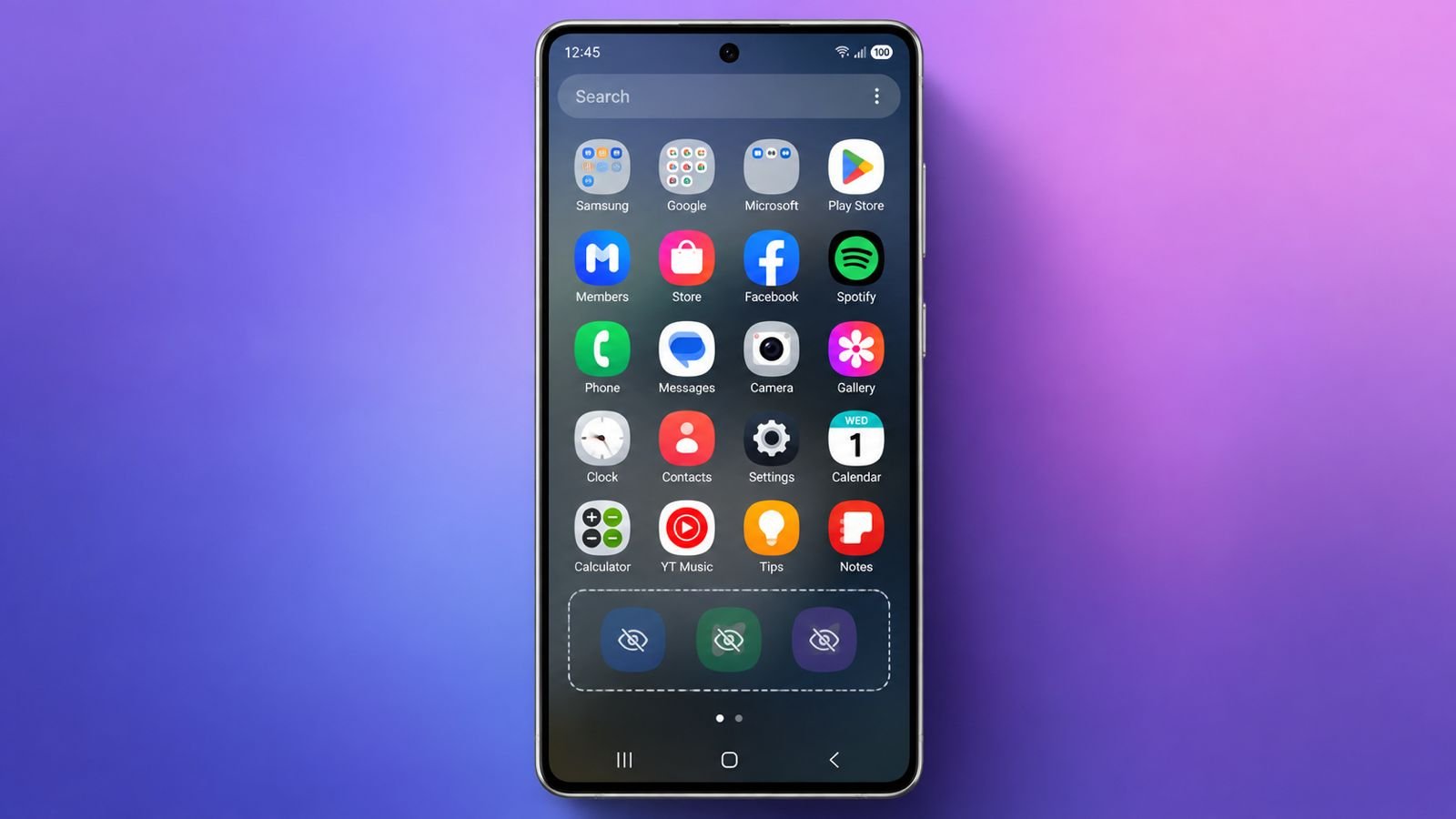

Find Hidden Apps on Android with these simple methods. Hidden apps can disappear from normal phone screens. Some hide because Android manages them automatically.
Others hide through launcher or privacy settings. This guide helps you find them quickly.
Find Hidden Apps on Android Through App Drawer
The app drawer should be your first checking point. It normally contains applications installed on your smartphone. However, hidden apps may not appear there. Many Android phones include built-in app hiding features.
The exact steps can differ between manufacturers. Android versions can also change available menu options. Samsung phones may show different settings than others. Therefore, don’t worry if menus look different.
Check Your App Drawer Settings
Start by returning to your phone’s Home screen. Swipe upward to open your complete app drawer. Look around the screen for three small dots. Their position can differ between different launchers.
Tap those three dots to open additional settings. Then select Settings from the available menu. Look for options mentioning Hide apps or Hidden apps.
On some Samsung phones, you’ll find specific options. These options control apps hidden from Home screens. Hidden applications usually appear inside this dedicated section.
You can then review every hidden application listed there. Tap an app to remove its hidden status. The app should become visible on your phone. You can also hide visible apps using checkboxes.
Why This Method Is Worth Trying
This method quickly catches launcher-hidden applications. It’s especially useful when apps suddenly disappear. However, it doesn’t reveal every installed application.
Disabled apps may remain outside this particular list. System apps can also remain hidden elsewhere. That’s why your next stop should be Settings.
Find Through Settings
Android Settings offers a much deeper application inspection. It can reveal apps missing from normal screens. You can also find disabled applications through Settings. System applications can appear through special filtering options.
This makes Settings especially useful during security checks. It also helps when cleaning up your phone.
Open The Complete App List
Open the Settings application on your Android phone. You can find it directly from your Home screen. Alternatively, swipe downward from your screen’s top. Then tap the gear-shaped Settings icon.
Scroll down and select Apps from Settings. Some phones instead show Apps & notifications. Others may simply display App info.
Look for See all apps when available. This opens a complete list of applications. You can now scroll through everything installed.
Some Android phones also provide filtering controls. Tap the filter icon inside the Apps section. Choose All to expand your application list.
You may also see Show system apps there. Enable this option when conducting deeper investigations. The list becomes much longer after enabling it.
Don’t Panic Over Unfamiliar System Apps
Seeing unfamiliar names doesn’t automatically indicate danger. Android contains many system components behind the scenes. These components support important functions across your smartphone.
Some examples handle storage and connectivity functions. Others manage notifications, updates, or device services. Users normally don’t need to interact with them.
System applications are hidden for practical reasons. Removing important components can cause unexpected problems. Therefore, investigate unfamiliar apps before making changes.
If you’re simply cleaning your phone, keep filtering simple. Leave Show system apps disabled during normal checking. This makes the application list easier to understand.
Check Disabled Apps Carefully
Disabled applications deserve special attention during inspections. These apps can disappear from normal application screens. However, Android continues showing their information inside Settings.
Open the application’s information page for further details. Look for an option labeled Enable on-screen. Tapping Enable can restore the application again.
Only enable applications you recognize and understand. Unknown applications should receive additional investigation first.
Find Using Search
Sometimes you already know which app disappeared. Android’s search feature can locate it quickly. This saves time compared with scrolling through application lists.
Swipe upward to open your application drawer first. Then find the search bar shown there. Type the application’s name into the search field.
If installed, the application should appear under Apps. This can happen despite missing Home screen icons. It may also appear despite being hidden elsewhere.
Tap the application shown inside your search results. You can then access its available application settings. Some phones display an Open button there.
Tap Open to launch the application directly. This method works particularly well for specific apps.
What If Search Finds Nothing?
If no Apps section appears, check spelling. The application may have another displayed name. It could also be disabled or completely removed.
In that situation, return to your Settings. Search through the complete Apps list there. You can also check Google Play afterward.
Find Through Google Play
Google Play provides another useful checking method. It records applications downloaded through your Google account. Some hidden applications can appear inside this history.
Open the Google Play Store application first. Tap your profile picture or account icon. Then select Manage apps & devices.
Choose the Manage tab to view applications. You can review applications installed through Google Play. This provides another useful comparison against Settings.
Google Play Has Some Important Limitations
Google Play doesn’t show every application installed. Pre-installed system apps generally won’t appear there. Manufacturer-installed bloatware can also remain outside Play.
Third-party store applications won’t appear there either. Malware installed outside Google Play can remain absent. Therefore, don’t rely exclusively on this method.
Instead, compare Google Play with Android Settings. Then compare both lists with your app drawer. Multiple checks provide better visibility across your device.
Find By Checking App Hiders
Some third-party applications specifically hide other applications. Others disguise themselves as ordinary phone utilities. These applications can become difficult to recognize quickly.
Malicious software can also use similar disguises. Hackers don’t want users discovering their applications. Therefore, suspicious apps may use generic names.
Some examples include System Vault or Storage Manager. Other names can imitate legitimate Android services. Names such as Media Provider deserve careful checking.
However, generic names don’t automatically prove malicious behavior. Some legitimate system components use similar names.
Watch For These Warning Signs
Check your Apps list for unfamiliar applications. Pay special attention to apps you never installed. Apps without recognizable icons deserve closer inspection.
Also watch for names resembling popular applications. Fake applications sometimes copy familiar names and icons. Even small spelling changes can reveal deception.
For example, a fake name may resemble Netflix. The imitation may look legitimate at first glance. Always check the application’s developer and permissions.
Review Suspicious App Permissions
Permissions can provide useful clues about suspicious apps. Open the app’s information page through Settings. Then review the permissions it currently has.
Pay particular attention to unusually broad permissions. Message access deserves careful attention from unfamiliar apps. Storage access can also reveal potential privacy concerns.
Camera and microphone permissions require similar checking. Device administrator access should receive extra attention.
An unused application shouldn’t need excessive permissions. Investigate anything that doesn’t match its purpose.
Check Battery And Data Usage
Hidden applications can continue running behind the scenes. This activity can affect your battery performance. It can also increase mobile data consumption.
Check your phone’s battery usage information regularly. Look for unfamiliar apps consuming significant battery power.
Data usage can provide another useful warning sign. An unfamiliar application using large amounts of data deserves investigation.
These signs don’t automatically confirm malicious activity. They simply provide reasons for closer checking.
Why Are Some Android Apps Hidden?
Not every hidden app represents a security problem. There are several completely normal reasons behind hiding.
Common Reasons Include:
- System apps: Android needs these for essential functions.
- Background apps: Some tools operate without visible icons.
- Parental controls: These can work quietly in the background.
- Work applications: Businesses may hide certain applications.
- Forgotten settings: Users sometimes hide apps accidentally.
- Malware: Some malicious apps deliberately avoid detection.
Understanding these reasons prevents unnecessary panic. It also helps you investigate unusual apps logically.
Security Risks From Truly Suspicious Hidden Apps
Most hidden Android applications have legitimate purposes. However, malicious applications can create serious security problems.
Spyware can collect private information without obvious warning. This can include contacts, messages, and browsing history. Some malware can also access personal photos.
Certain malicious applications can track your location. Others can record keystrokes and capture passwords. Some can monitor activity across different applications.
Malware can also create unwanted advertisements. It may use your data for fraudulent activities. Some threats can delete files or demand ransom.
Certain malicious apps can lock your smartphone. Others may damage important data or system functions.
Watch For These Malware Warning Signs
Take action when several unusual signs appear together. Sudden overheating can indicate constant background activity. Unexpected slowdowns can also indicate hidden processes.
Random freezes and glitches deserve attention too. Excessive advertisements can indicate hidden adware. Rapid battery drain can also raise concerns.
Be especially careful after clicking suspicious links. Phishing messages can sometimes deliver malicious applications. Social media links can also expose devices.
Regular checking can reduce these security risks. Keep Android and security software updated regularly. Avoid installing applications from questionable sources.
As We Conclude
Find Hidden Apps on Android using multiple checking methods. Start with your app drawer and launcher settings. Then inspect Settings for disabled and system apps.
Use search and Google Play for extra verification. Finally, review permissions, battery, and data usage. Hidden apps aren’t automatically dangerous or malicious. Regular checks can improve your phone’s security.