
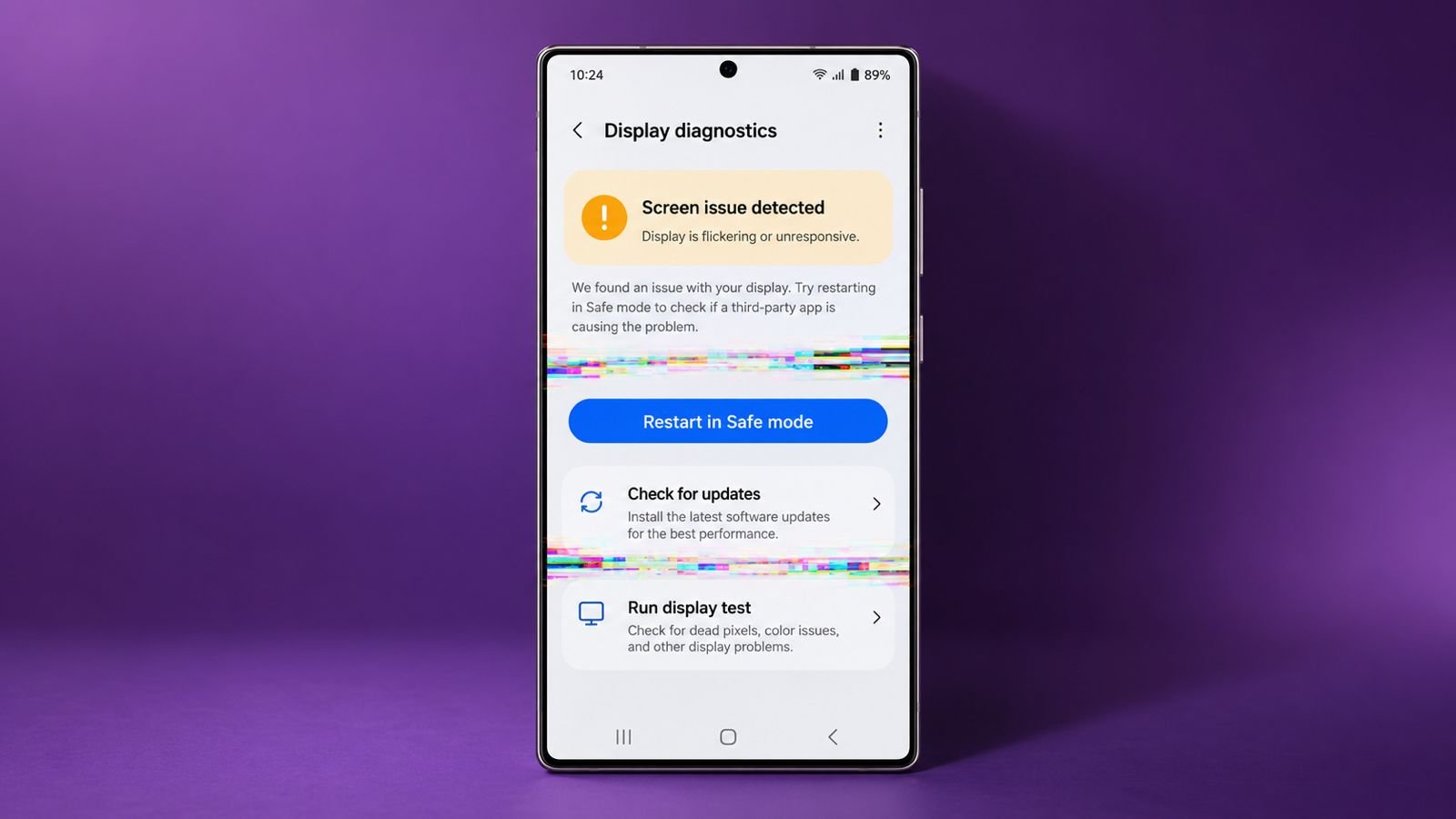

Sometimes, applications suddenly crash without showing any warning. These Phone Glitching issues can affect both Android and iPhone users.
Fortunately, many glitches have simple solutions. Understanding their causes makes troubleshooting much easier.
Solve Phone Glitching: Common Causes and Symptoms
Imagine checking an important message when your screen freezes. You tap repeatedly, but nothing happens. Sometimes, your phone starts flickering without warning.
These frustrating problems can have several underlying causes. Identifying the actual reason helps you find solutions.
Software Bugs and Application Conflicts
Every smartphone uses an operating system for functioning. Android and iOS manage applications and everyday activities.
However, software bugs can interrupt normal device operations. These errors sometimes cause screens to flicker. Applications might crash, freeze, or stop responding.
Your phone’s graphics processing unit renders visual content. It helps applications display images and animations smoothly.
However, demanding applications sometimes overload graphics resources. The central processor may then assist graphics processing. Conflicts between these components can cause display glitches.
Common software-related symptoms include:
- Applications closing unexpectedly during regular usage.
- Screens flickering while opening particular applications.
- Touchscreens freeze without any clear explanation.
- Slow performance after installing certain applications.
Outdated applications can also create compatibility problems. Keeping your software updated can prevent these issues.
Insufficient Storage Space
Storage problems can significantly affect smartphone performance. Applications, photographs, videos, and downloads consume available space.
When storage becomes limited, smartphones may become unstable. Less than five gigabytes can increase glitching. Your device might freeze or respond very slowly.
You might experience these storage-related problems:
- Applications taking longer to open.
- Unexpected freezing during everyday smartphone activities.
- Difficulty installing updates or downloading new applications.
- Slower performance while switching between different tasks.
Removing unnecessary files can improve overall performance. Transferring photographs also helps create additional storage space.
Overheating and Battery Problems
Smartphones generate heat during demanding everyday activities. Playing games increases processor usage and battery consumption. Watching videos for extended periods generates additional heat.
Excessive temperatures can affect your phone’s normal performance. Your screen might flicker, freeze, or become unresponsive..Older batteries can also cause unexpected performance problems.
Smartphone batteries gradually deteriorate through regular daily usage. Damaged batteries may struggle to provide consistent power. This can cause unexpected shutdowns and screen glitches.
Watch for these common warning signs:
- Your smartphone becomes unusually hot during usage.
- Battery percentage drops faster than usual.
- Your phone unexpectedly shuts down or restarts.
- Screen glitches appear during demanding activities.
Checking battery health helps identify possible power problems. Replacing worn batteries may restore stable phone performance.
Viruses and Physical Hardware Damage
Malware can affect smartphones, just like computers. Harmful applications sometimes contain hidden malicious software. Suspicious links and infected attachments create additional risks.
Malware may cause overheating and rapid battery drainage. Unexpected data usage can also indicate possible infections.
Physical damage can also cause persistent screen glitches. Dropping your phone may damage internal electronic components.
Water exposure can affect sensitive circuits and connectors. Even small display cracks can cause flickering. Electrical surges may also damage internal phone hardware.
Effective Ways to Fix Phone Glitching
Finding your phone glitching doesn’t always mean replacement. Several troubleshooting methods can resolve common smartphone problems.
Start with simple solutions before attempting advanced adjustments. Always protect important files before making major changes.
Restart Your Smartphone
Restarting your phone can resolve temporary software problems. It closes background processes and refreshes system operations. Sometimes, this simple solution immediately restores normal functionality.
Follow these simple steps:
- Press and hold your phone’s power button.
- Select Restart or Power Off when available.
- Turn your device back on after shutdown.
- Check whether the glitching problem has disappeared.
If problems continue, try the following solutions.
Update Your Operating System
Outdated software can cause unexpected smartphone performance issues. Updates often include important security fixes and improvements. Installing them may resolve existing display glitches.
For iPhone:
- Open Settings and select General.
- Tap Software Update to check available updates.
- Download and install any available software updates.
For Android:
- Open Settings and select System.
- Tap System Update or Software Updates.
- Follow instructions to install available updates.
Settings menus can differ between smartphone manufacturers. Keep your operating system updated whenever possible.
Free Up Storage Space
Insufficient storage can affect your phone’s performance. Check available space before deleting unnecessary files.
For iPhone:
- Open Settings and select General.
- Tap iPhone Storage to review storage usage.
- Remove unnecessary applications, photographs, and downloaded files.
For Android:
- Open Settings and select Storage.
- Review available space and stored files.
- Delete unnecessary items or transfer them elsewhere.
Cloud storage can help preserve important photographs. Maintaining sufficient free space supports smoother smartphone performance.
Test Your Android Phone Using Safe Mode
Safe Mode helps identify problematic third-party applications. It temporarily disables applications installed by users. This makes troubleshooting unwanted software conflicts much easier.
Follow these steps to enter Safe Mode:
- Press and hold your phone’s power button.
- Touch and hold the Power Off option.
- Select Reboot to Safe Mode when prompted.
- Tap OK and allow your phone to restart.
Some smartphone manufacturers use different Safe Mode procedures. TECNO and Infinix devices may require alternatives. Try holding the HiOS or XOS logo instead.
Once enabled, use your phone for several minutes. If glitching disappears, an installed application might interfere.
Uninstall recently installed applications to identify the culprit. Reinstall other applications after finding the problematic one.
Turn Off Adaptive Brightness
Adaptive brightness automatically adjusts your screen brightness. It responds to surrounding environmental lighting conditions.
However, certain problems can cause screen flickering. Temporarily disabling this feature may help.
Try following these steps:
- Open Settings and select Display.
- Find Adaptive Brightness or Auto Brightness.
- Turn off the automatic brightness adjustment feature.
- Manually adjust brightness to test screen stability.
Try different brightness levels to identify possible triggers. If flickering continues, proceed with another solution.
Disable Developer Options
Developer Options provide advanced Android system adjustments. Certain settings may interfere with normal display performance. Disabling these options can sometimes resolve screen glitches.
Here’s how to disable this feature:
- Open Settings and locate Developer Options.
- Scroll down if necessary to find them.
- Turn off the Developer Options switch.
If unavailable, this setting probably isn’t responsible. Continue troubleshooting with other possible solutions.
Clear Your Phone’s System Cache
Corrupted cached information can sometimes affect system stability. Clearing cache may resolve certain Android display glitches. However, recovery procedures differ between smartphone manufacturers.
Follow these steps carefully:
- Turn off your Android smartphone completely.
- Press Power and Volume Up together.
- Release buttons when recovery mode appears.
- Some devices require different button combinations.
- Select Wipe Cache Partition using volume buttons.
- Press Power to confirm your selection.
- Select Yes when the confirmation screen appears.
- Restart your phone after clearing the cache.
Avoid selecting factory reset accidentally during this process. Factory resetting can erase your personal information. Consult your manufacturer’s instructions when uncertain.
Limit Background Applications and Check Battery Health
Background applications can consume memory and battery. Restricting unnecessary activity may improve smartphone performance. These adjustments can also reduce unnecessary battery consumption.
For iPhone:
- Open Settings and select General.
- Tap Background App Refresh.
- Disable refreshing for unnecessary background applications.
For Android:
- Open Settings and select Apps.
- Choose an application requiring background restrictions.
- Tap App Battery Usage.
- Disable Allow Background Usage when available.
Battery health is another important performance factor. Batteries gradually lose capacity through repeated charging cycles. Checking battery usage can reveal unusual power consumption.
For iPhone:
- Open Settings and select Battery.
- Tap Battery Health on iPhone 15 models.
- Older models offer Battery Health and Charging.
For Android:
- Open Settings and select Battery.
- Tap Battery Usage to review consumption.
- Investigate unusual battery usage or sudden variations.
Reset Your Phone’s Settings
Incorrect settings can sometimes cause unexpected software behaviour. Resetting settings may resolve configuration-related smartphone problems.
This process generally preserves personal files and applications. However, saved network and privacy settings may change.
For iPhone:
- Open Settings and select General.
- Tap Transfer or Reset iPhone.
- Select Reset, then Reset All Settings.
For Android:
- Open Settings and select General Management.
- Tap Reset, then Reset All Settings.
- Review the information and confirm your selection.
Menu names can differ across Android manufacturers. Review confirmation messages before proceeding with any reset.
When to Seek Professional Help
Sometimes, software troubleshooting cannot resolve persistent glitches. Your smartphone might have underlying hardware damage. Recognising serious symptoms helps you take appropriate action.
Recognise Serious Warning Signs
Consider professional assistance when these problems continue:
- Your smartphone repeatedly freezes without any warning.
- The device restarts unexpectedly during regular usage.
- Your screen flickers despite installing available updates.
- Your phone overheats during simple everyday activities.
- The touchscreen frequently stops responding properly.
- Display problems continue after basic troubleshooting.
These symptoms may indicate damaged internal smartphone components. A qualified technician can identify their actual cause.
Check for Physical Damage
Inspect your phone carefully for visible physical damage. Look for screen cracks, dents, or unusual discoloration. Check whether water exposure happened recently. Avoid applying pressure to damaged display areas.
Even minor cracks can affect touchscreen performance. Internal damage may exist without visible external signs. Professional inspection can help identify hidden hardware problems.
Visit an Authorised Repair Provider
Professional technicians can inspect your smartphone thoroughly. They can identify damaged screens and internal components. Sometimes, replacing the display becomes the necessary solution. Battery replacement may also resolve certain performance problems.
Visit your smartphone brand’s authorised repair provider. TECNO, itel, and Infinix users have options. Carlcare provides repair services for these brands. You can visit service centres for professional assistance. Repair reservations may also be available beforehand.
Avoid unnecessary factory resets before professional diagnosis. Resetting cannot repair physically damaged phone components. It may also erase important personal information. Back up your data before arranging professional repairs.
The Bottom Corner
Phone Glitching can interrupt everyday smartphone activities. Fortunately, many common issues have straightforward solutions.
Keep your software updated and storage organised. Handle your device carefully to reduce damage.