
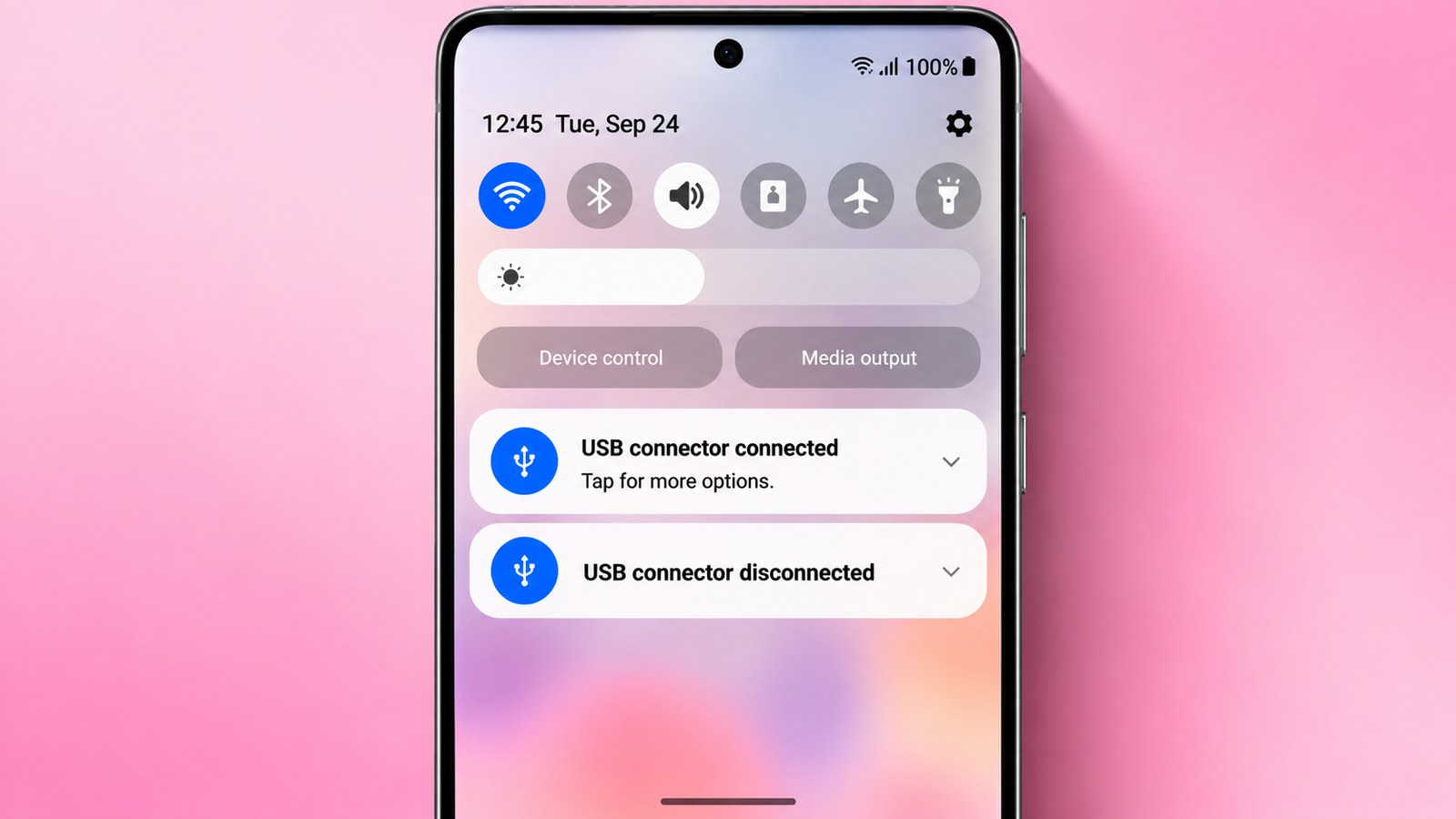

If your Samsung phone keeps switching between “USB connector connected” and “USB connector disconnected” when no cable is attached, do not begin by hiding the notification. The alert normally means the phone is repeatedly detecting and losing an electrical connection at the USB port. A damp or contaminated port, a damaged cable or case, worn connector pins, or—less often—a software process can cause that loop.
Quick answer: unplug every USB accessory, power the phone off if the port may be wet, let it dry completely, inspect the port without inserting a tool, then test a known-good cable. If the notification continues with nothing connected, run Samsung Members’ USB connection and Cable charging diagnostics. A failure in either test, visible corrosion, heat, or interrupted charging points to service rather than a notification setting.
Research note: This guide is based on Samsung’s current support instructions and symptom-based troubleshooting. BGTake has not reproduced this fault on every Galaxy model, so menu names may differ by One UI version.
First identify which USB problem you have
| What you see | Most useful first check |
|---|---|
| The alert loops with no cable connected | Check for moisture, debris, corrosion, or damaged port pins |
| It happens only with one cable or charger | Stop using that cable and test a known-good Samsung-compatible cable |
| The phone charges but a PC or Android Auto cannot see it | Open the USB notification and select Transferring files / Android Auto |
| Charging repeatedly starts and stops | Remove the case, check the fit, and run Cable charging diagnostics |
| The port or plug becomes hot | Disconnect it immediately and arrange inspection |
1. Disconnect everything before troubleshooting
Remove the charger, computer cable, USB-C earphones, OTG adapter, power bank and any other accessory. Take off the phone case as well. Samsung notes that some cases prevent a cable from seating fully, which can create an unstable connection.
If the loop stops after removing one accessory, do not reconnect all items at once. Reconnect them individually. This isolates a failing cable or accessory instead of treating the phone as the cause.
2. Rule out moisture before charging again
If the phone was recently exposed to rain, condensation, a humid bathroom, sweat, or a spill, switch it off and leave the USB port facing downward in a dry, ventilated place. Do not charge it until the connector is completely dry. Samsung warns that charging a damp port can cause corrosion and device damage.
Do not use a hair dryer, heater, chemical cleaner, or abrasive material. Samsung’s current safety guidance also advises against compressed air for drying or cleaning a wet device. For the separate water-drop warning, follow our Samsung moisture-detected warning guide.
3. Inspect the USB port without probing it
Under a bright light, look for pocket lint, bent or pushed-in contacts, green or white residue, and an off-centre connector tongue. Do not insert a pin, toothpick, SIM ejector, metal brush, or wet cotton swab. These can bend contacts or leave material inside the port.
If debris is clearly visible but cannot be removed without touching the contacts, use a service centre. Visible corrosion, a loose internal tongue, or a connector that moves inside the phone is not a software problem.
4. Test the cable, charger and case separately
- With the case removed, connect a known-good, undamaged cable.
- Use a reliable wall charger rather than a loose computer or vehicle port for this test.
- Gently check whether the plug sits fully and remains stable. Do not wiggle it repeatedly.
- If the problem appears with one cable only, retire that cable.
- If every cable disconnects with small movement, the phone’s port needs inspection.
A cable can still deliver some power while its data contacts are damaged. That is why “it charges sometimes” does not prove the cable or port is healthy.
5. Restart and install the available One UI update
After the port is dry and no damaged accessory is attached, restart the phone. Then open Settings → Software update → Download and install. A restart clears a stuck USB process; an update can resolve a known compatibility fault. Neither step can repair corrosion, loose contacts, or physical port damage.
6. Run Samsung’s USB diagnostics
This is the most useful step missing from many generic guides. On supported Galaxy devices, open Samsung Members → Support → Phone diagnostics. Run these two tests individually:
- USB connection
- Cable charging
On some recent versions, the same tools appear under Settings → Device care → Diagnostics → Phone diagnostics. If either test fails, save the result or take a screenshot and include it with a Samsung Members error report or service request.
7. Use Safe mode only to separate software from hardware
Safe mode temporarily runs the phone with core apps. Open the power menu, touch and hold Power off, then select Safe mode. Leave every USB accessory disconnected and observe the phone.
- If the notification stops in Safe mode, a recently installed app or accessory-related service may be involved. Remove recent apps one at a time after restarting normally.
- If the loop continues in Safe mode, Samsung’s guidance treats hardware as more likely. Do not factory-reset the phone before checking the port.
Do not use these popular “fixes”
- Do not simply disable Android System USB notifications. It hides the symptom and can conceal a failing connection.
- Do not enable USB debugging as a repair. Debugging changes developer access; it does not remove moisture or repair connector pins.
- Do not enter unofficial dialler codes. Hidden USB menus vary by model and can change connection behaviour without fixing the cause.
- Do not put the phone in rice. It does not clean the connector and particles can enter the port.
- Do not factory-reset first. A reset cannot fix a loose, contaminated or corroded port.
When the notification is normal
A USB notification is expected while the phone is connected to a computer or car. On current Galaxy software, pull down the Quick panel and tap USB for charging phone. Select Transferring files / Android Auto when you need data access. This setting solves a transfer-mode problem; it is not the fix for alerts that alternate while nothing is plugged in.
When to stop and book a repair
Arrange professional inspection if the connector or cable becomes hot, charging cuts in and out with multiple known-good cables, the USB diagnostics fail, the port has visible corrosion or bent contacts, the phone was exposed to liquid, or the alert continues in Safe mode with no accessory attached. Bring the cable that triggers the problem; Samsung recommends this because it helps the technician reproduce the fault.