


The AI car driving video prompt you need depends on the Reel you are trying to make. A steady shot of yourself behind the wheel is a photo-animation task. A Mercedes exterior shot that transitions into a close-up of the driver needs a planned sequence or a video reference. The “Pata Chalega” version adds a separate music or performance requirement.
This guide gives you original prompts for both the reference-video and photo-only routes, with a creator tutorial to see the difference, Google Flow settings to check and a way to troubleshoot failed attempts without changing everything at once.
Jump to: Choose your method · Mercedes reference-video prompt · Photo-only prompt · Pata Chalega music edit · Credits and retry budget
Which car-driving edit do you want?
| Your target | Input to prepare | What the prompt can guide |
|---|---|---|
| A calm driving shot with your face | A finished image of you seated in the car | Small movements and a simple camera move |
| Mercedes exterior → driver close-up | An authorised reference clip plus your portrait, or separately planned shots | Scene structure, camera movement and driver replacement |
| Pata Chalega music Reel | A finished clip and permitted audio; a performance reference if lip-sync matters | Visual mood and gestures; naming a song alone does not ensure matching lip-sync |
Why this distinction matters: A selfie does not contain a car, a camera path or the timing of a transition. “Match the reference video” only has meaning when you actually attach a usable video reference. If you upload just a selfie, choose the photo-only route below instead.
See the reference-video workflow
Make it Simple’s tutorial, linked from Mangidik’s car-driving guide, demonstrates the video-plus-portrait approach. Use it to understand the inputs and intended sequence. The demonstration is by Make it Simple.
Video credit: Make it Simple on YouTube. Open the original video if the embedded player does not load.
Mercedes car driving AI video prompt: reference-video method
Prepare two files: a clear portrait of yourself and a short car clip you own or have permission to edit. In Flow, choose a model and mode that accept video references or uploaded-video edits. Attach both assets and identify their roles explicitly. Google’s Gemini Omni prompt guide describes combining media references and making targeted edits; support still depends on the product, region and selected model.
Edit the attached car video, using the attached portrait to identify the new adult driver. Keep the source clip’s vehicle, location, shot order, camera path and overall duration. Change the driver to the portrait subject, preserving their face shape, hair and skin tone as closely as possible. Fit the person naturally into the existing seat and lighting. Keep the cabin, wheel and window edges stable. Retain the source’s restrained movement; do not add a wave, extra passengers or new camera cuts. If the face becomes obscured, preserve believable continuity when it returns. Produce the visual edit without new dialogue or music.
Before you generate: Select the actual uploaded assets in the interface. Writing a filename, an Instagram link or “use my photo” without attaching the file does not supply that visual reference. If the tool only offers start/end images, it is a different workflow: use the photo method or create separate exterior and interior shots, then edit them together.
Where can you get the reference video?
The creator’s guide linked above provides a reference download. Check its reuse permission before uploading it to another service; a download button alone is not a licence. You can also use your own stationary-car performance clip. We have not rehosted the creator’s footage or verified it as an unrestricted asset.
When selecting footage, inspect the moment where the camera reaches the driver. Heavy windshield reflections, a face hidden by a hand or a fast transition make the important facial details harder to see. Start with a short, clearly framed section rather than an entire Reel with captions, cuts and unrelated scenes.
Photo-only AI car driving video prompt
Use this with a starting image that already shows you seated in the car. Select and copy the entire prompt. Change the scene details to suit your photo.
Animate the supplied driving image into one continuous vertical cinematic shot. Preserve the person’s visible facial structure, hairstyle, clothing and seat position from the starting image. Keep the camera at the passenger-side window with a gentle, slow push-in. The driver wears a seatbelt, looks ahead and holds the steering wheel steadily. Add subtle breathing and one natural blink. The car moves smoothly along a quiet road; distant scenery passes slowly while the cabin remains stable. Use soft daylight, restrained window reflections and realistic skin texture. Keep the steering wheel, dashboard and hands consistent throughout. No cuts, no sudden head turns, no speaking, no captions and no new passengers.
This prompt deliberately limits movement. A head turn, a waving hand and a camera orbit in the same short clip create more opportunities for the face or interior to change. Keeping the action simple is a useful starting point, although no wording guarantees a perfect likeness.
First, make a good car-driving reference photo
A cropped selfie gives the model little information about the body, hands or cabin. If you only have a portrait, create the seated driving image first using an image editor that accepts a reference photo. Use your own picture or one you have permission to edit. Choose a well-lit face without heavy filters or sunglasses.
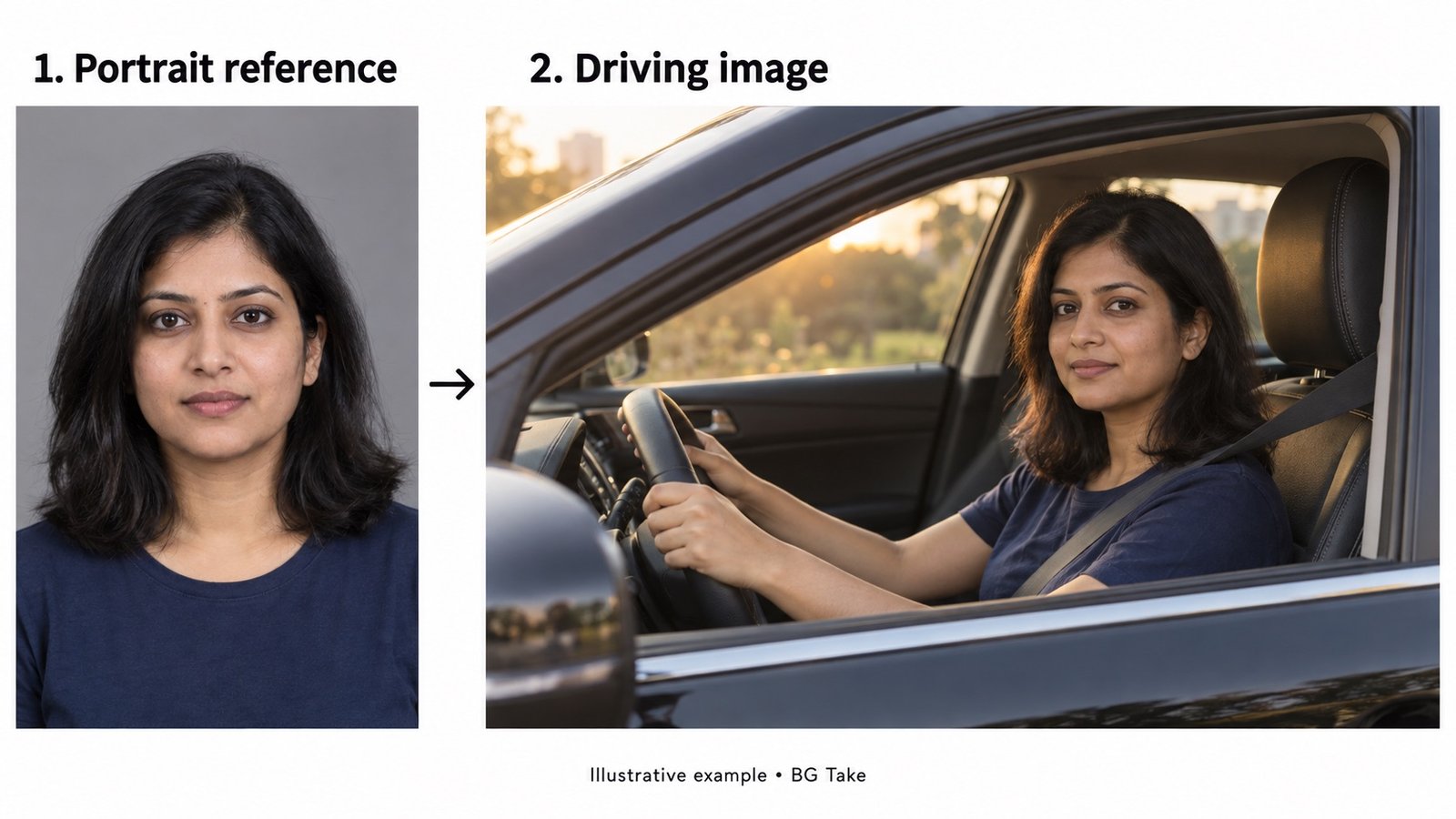
Photo-to-car image prompt
Use the uploaded portrait as the identity reference for an editorial-style image of this adult seated in a black luxury sedan. Retain their facial features, skin tone and hairstyle as closely as possible. Show a natural seated posture, a correctly fitted seatbelt and relaxed hands resting on the steering wheel. Frame the scene through the open passenger-side window, keeping the face, shoulders and steering wheel visible. The car is parked beside a quiet road in warm late-afternoon light. Keep the cabin layout physically coherent and the face unobstructed. Portrait 9:16 composition, realistic photography, no text and no added people.
Before animating, inspect both hands, the seatbelt and the steering wheel. Fix the still image if anything is wrong. For an Indian road scene, specify a right-hand-drive cabin with the driver seated on the car’s right. Avoid asking the model to switch sides after you have chosen the starting frame.
How to make the video in Google Flow
- Open Google Flow, sign in and create a project.
- In the prompt controls, choose Video, then Frames. Upload the approved driving image as the start frame.
- Pick an available model that supports your input and portrait output. Choose 9:16 for a full-height Reel and a short supported duration.
- Paste the motion prompt above. Check the displayed credit cost and number of outputs before generating.
- Review the clip frame by frame. Download the version with the most consistent face, hands and cabin.
Google’s Flow creation guide documents image start frames and video preferences. Controls and supported features can differ by model and region; check the current model support page if a setting is missing.
Can you use Gemini instead?
Yes, if video generation is enabled for your account. On the Gemini website, open the sidebar and choose Create video, attach the driving image, enter your motion prompt and submit. Download the result through the video’s sharing controls. Google’s Gemini video help currently requires a Google AI plan for personal accounts or an eligible Workspace license; the feature is unavailable to under-18 users. Check that page if your interface differs.
How to make the Pata Chalega car Reel version
Rsp Editing’s guide describes a car-interior performance associated with “Pata Chalega.” Decide whether you want a music-backed driving montage or visible singing: they require different results.
- Music montage: Generate the visual clip without dialogue. Add a permitted version of the audio in your editing or publishing app, then align the exterior-to-interior cut with the beat you choose.
- Visible performance: Use your own or an authorised performance reference in a compatible workflow. Review mouth movement against the final audio. A generic driving animation with music added later is not automatically lip-synced.
- Simple gesture variation: For a parked-car scene, replace the motion instruction with “The seated person gives one small smile and a single slow nod toward the camera; hands remain relaxed.” Use this as an optional creative variation.
Hindi mein: Sirf selfie hai to pehle car ke andar wali image banao, phir animate karo. Same camera transition chahiye to reference video bhi chahiye. Gaana add karna aur lips ko gaane se match karna alag steps hain.
Fix face changes, bad hands and unrealistic movement
- The face changes: Try a sharper source photo, keep the face larger in frame and remove head turns or camera orbits. Generate another short variation.
- Fingers merge into the wheel: Repair the starting image first. Keep the hands still instead of asking for gear changes or gestures.
- The steering wheel switches sides: Specify one driving position in the still-image prompt and keep that same cabin throughout.
- The car looks stationary: Describe gentle background movement explicitly while keeping the dashboard stable.
- The output is horizontal: Select portrait in the generator where available. A vertical source image can help composition; cropping a wide clip may cut off the face or wheel.
- The result looks soft: Check actual export resolution. Typing “4K” in a prompt does not change a model’s output settings or create genuine 4K detail.
Finish the clip for Instagram Reels
Trim the awkward opening or ending, keep your face away from interface overlays and choose a clean cover frame. Add music you are entitled to use through the publishing app or your editing workflow. Review the full export before posting and describe it as an AI edit so viewers understand the scene. The in-body portrait-to-driving illustration shows how to prepare the starting composition.
Check credits before retrying
Flow’s public page currently lists a free daily credit allowance, but model costs, demand restrictions and access can change. Read the amount shown for your selected operation; editing an uploaded video can have a different cost from animating a still. The official credit page explains that costs apply per generation, and one request may generate more than one output.
Retry calculation: displayed credits per output × outputs per request × attempts. For example, if your screen says 10 credits per output, choosing two outputs and trying three times budgets 60 credits. That is an arithmetic example, not a quoted price for every model. Start with one output and inspect it before ordering more.
A useful check before spending on the next attempt
Pause at the first clear face frame, the transition and the final frame. Compare the face, hands, steering-wheel position, seatbelt and background. Note the first moment the scene breaks. Change one instruction or input at a time: simplify a gesture for a hand problem, improve the portrait for an identity problem, or split the sequence for a transition problem. This makes the next attempt informative even if it still needs work.
Frequently asked questions
Is the AI car driving prompt free?
You can copy BG Take’s prompts here without payment. Video generation is separate: Flow uses credits and availability can be limited. Check Google’s current credit rules and your account balance before generating. Do not assume unlimited free videos.
Will it create exactly the same viral Reel?
No prompt guarantees an identical result. The source image, model, motion, lighting, editing and audio all affect the final clip. Aim for a consistent version of your own scene.
Can I use a normal selfie?
Yes, as the identity reference for the still-image stage. Create and inspect the driving composition before you animate it. A direct selfie-to-video request leaves more of the cabin and body for the model to invent.
For more practical technology guides, visit BG Take’s Technology section. Our editorial policy explains how we handle sources and AI-assisted material.
Sources and editorial notes
Updated September 24, 2026: we reviewed Google India results, related search interest, competing car-editing guides, the linked creator tutorial and Google’s product documentation. We expanded the original photo-only guide to distinguish reference-video editing and music-performance edits. The prompts are original BG Take starting points. The featured collage shows the car-driving Reel style; the in-body portrait-to-driving image is an AI-generated illustration. The embedded video belongs to its credited creator. No exact-face, exact-Reel or viral-result guarantee is implied.